
On the left-hand navigation menu, click Integrations and select Review Widgets.
Review Widget
How to Add the Review Widget to Your Website
The Canvas® Score Review Widget allows you to display your Google reviews directly on your website - either as a popup or an inline embed. It automatically pulls reviews from your connected Google Business Profile (GBP), ensuring your website always shows the most recent feedback from customers without any manual updates. The Review Widget can be added to any website.
Step-by-step guide:
Step 1:
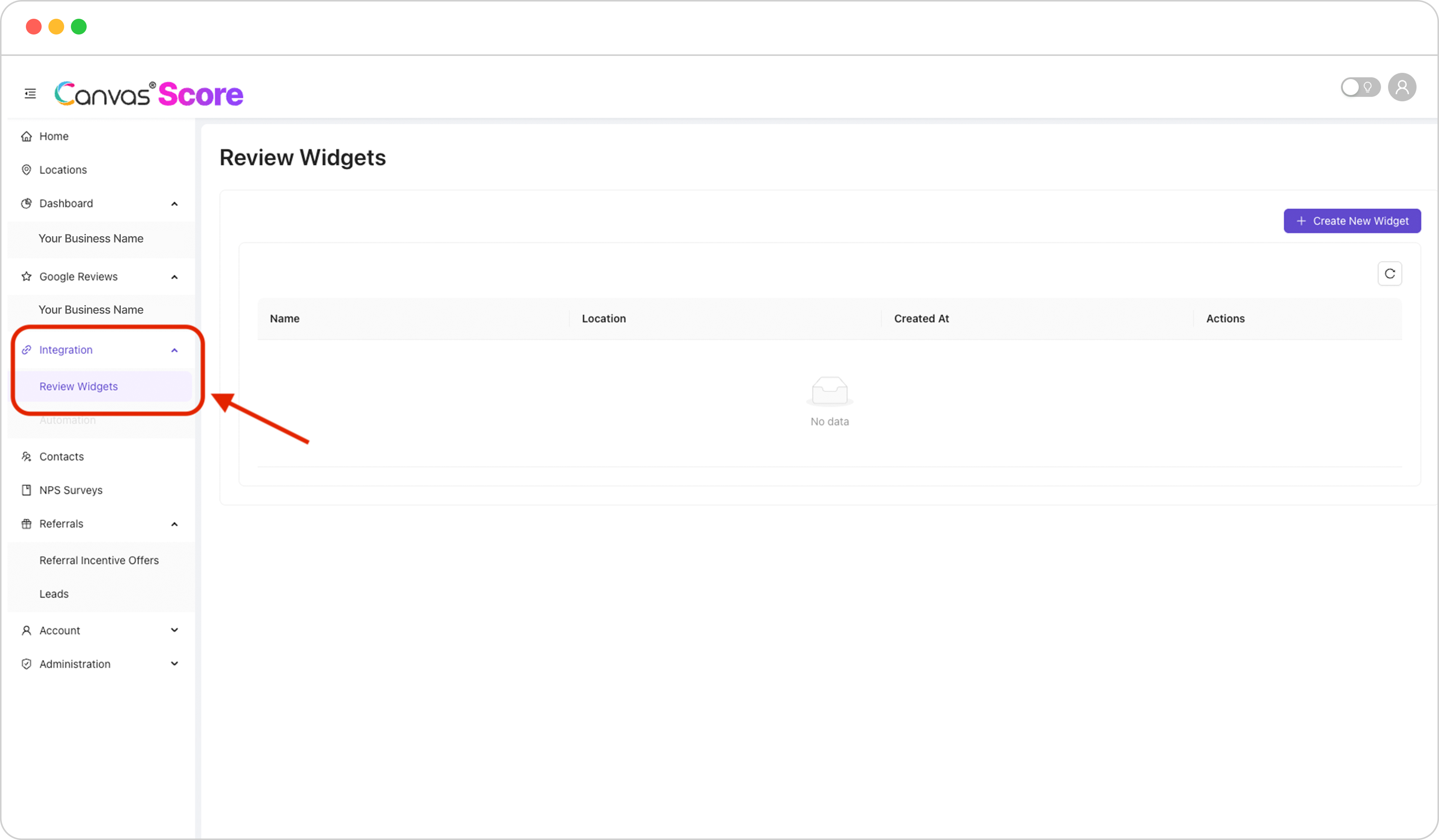
Step 2:
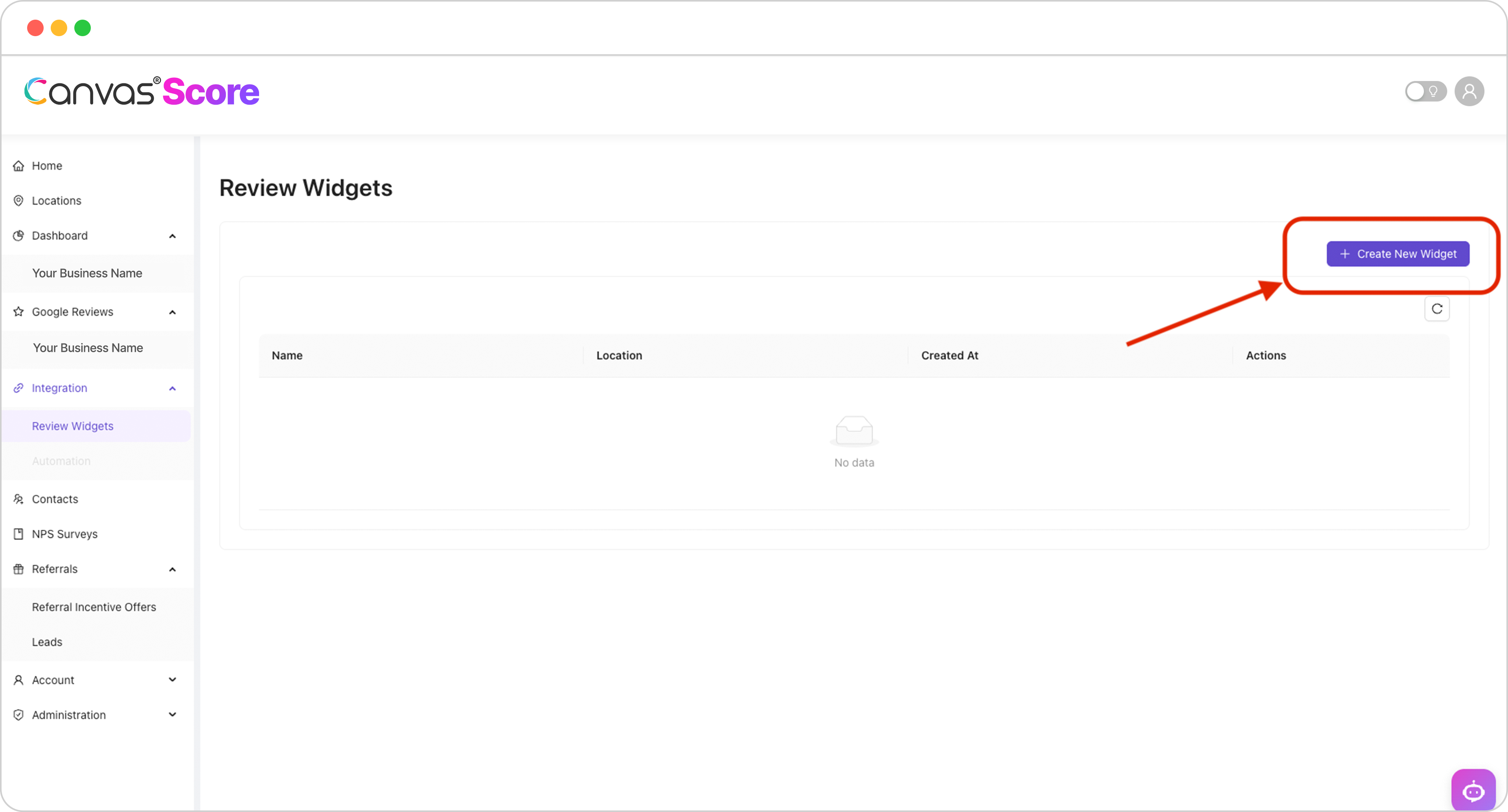
Click + Create New Widget.
Step 3:
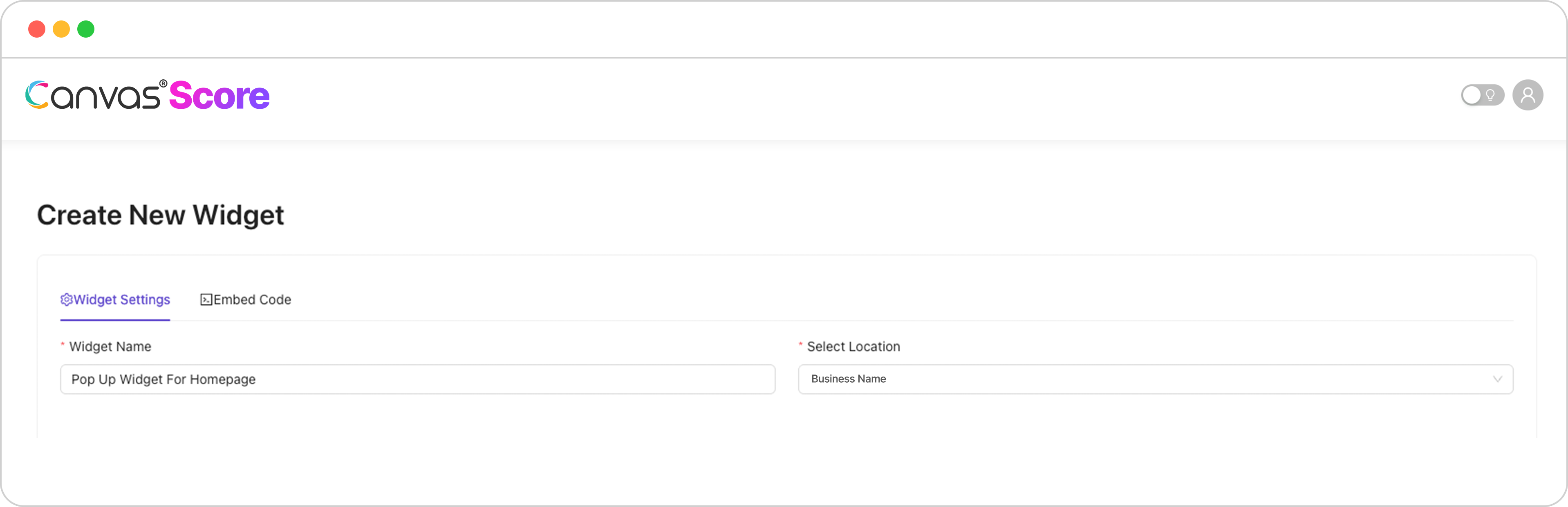
Enter a name for your widget and select your location.
Step 4:
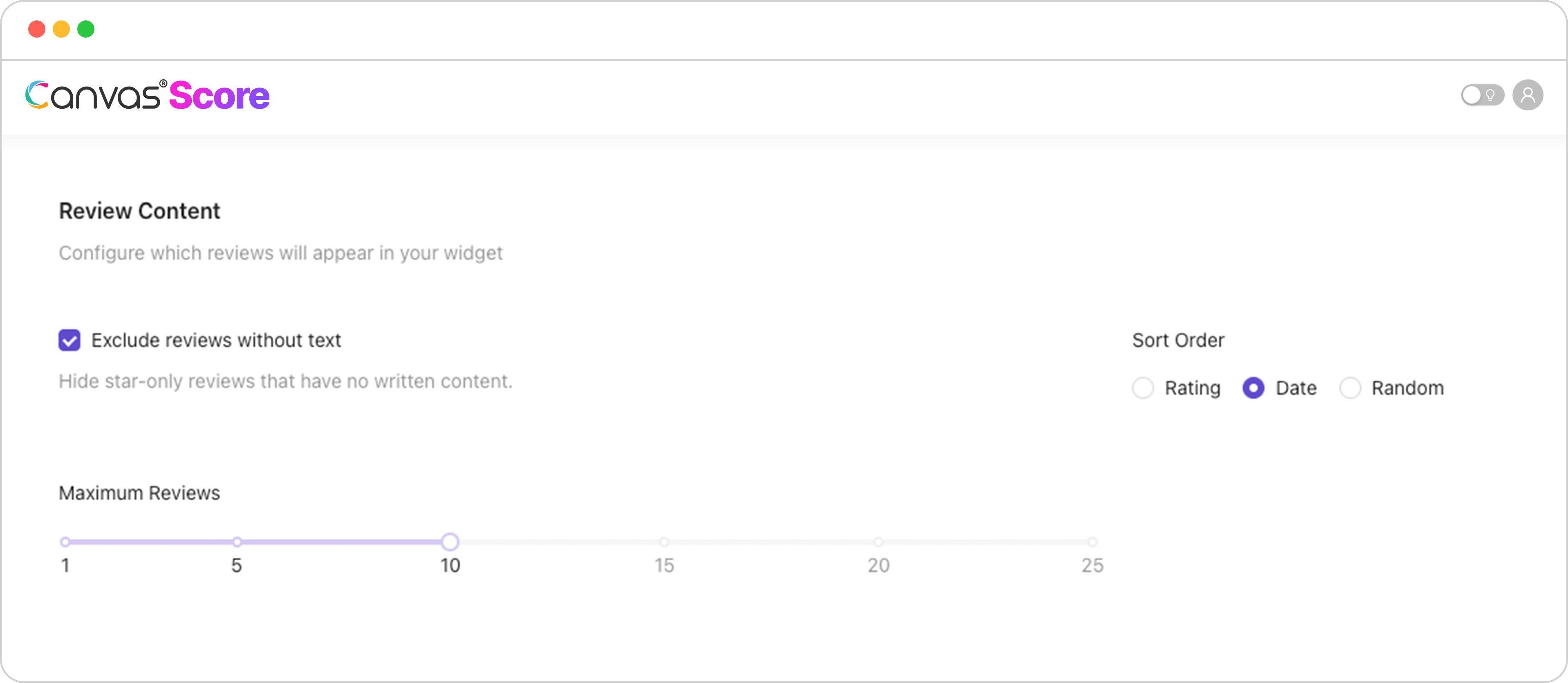
Choose whether to exclude reviews without text or include all reviews, adjust the maximum number of reviews to display and choose your preferred sort order (Rating, Date, or Random).
Step 5:
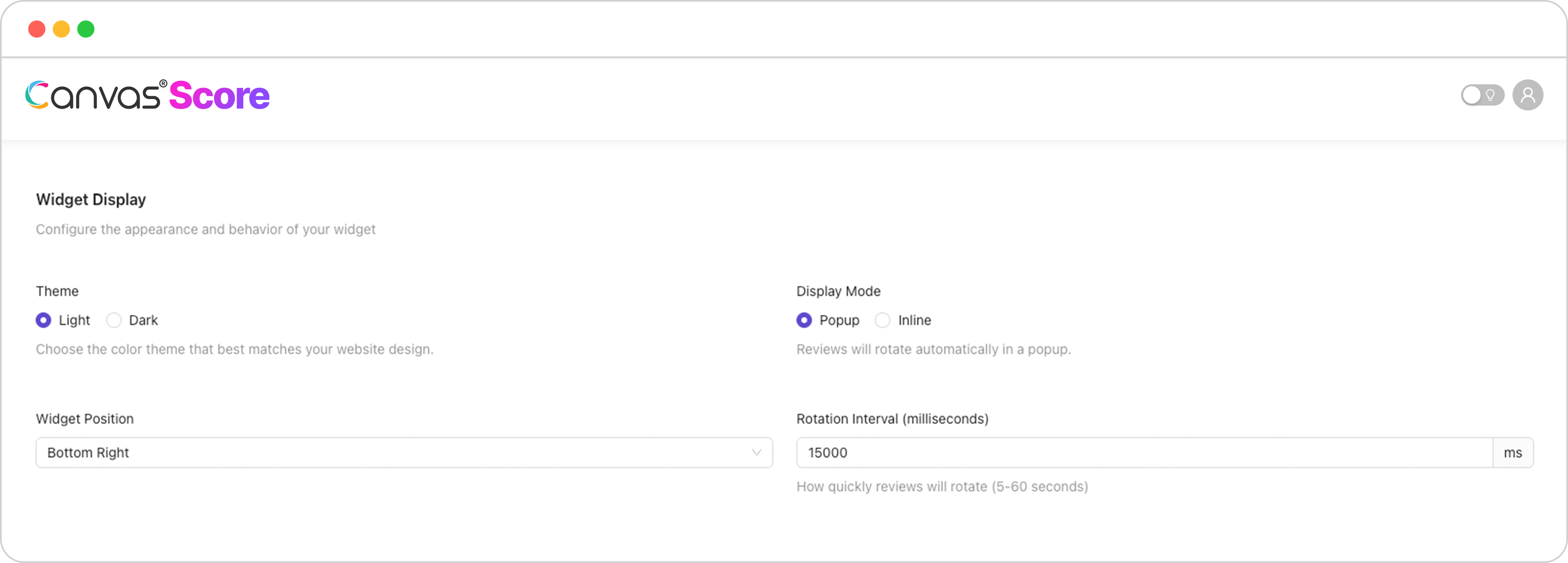
Select your preferred theme (Light or Dark), widget position on the page, display mode - either Pop-up (floating) or Inline (embedded), and the rotation interval.
Step 6:
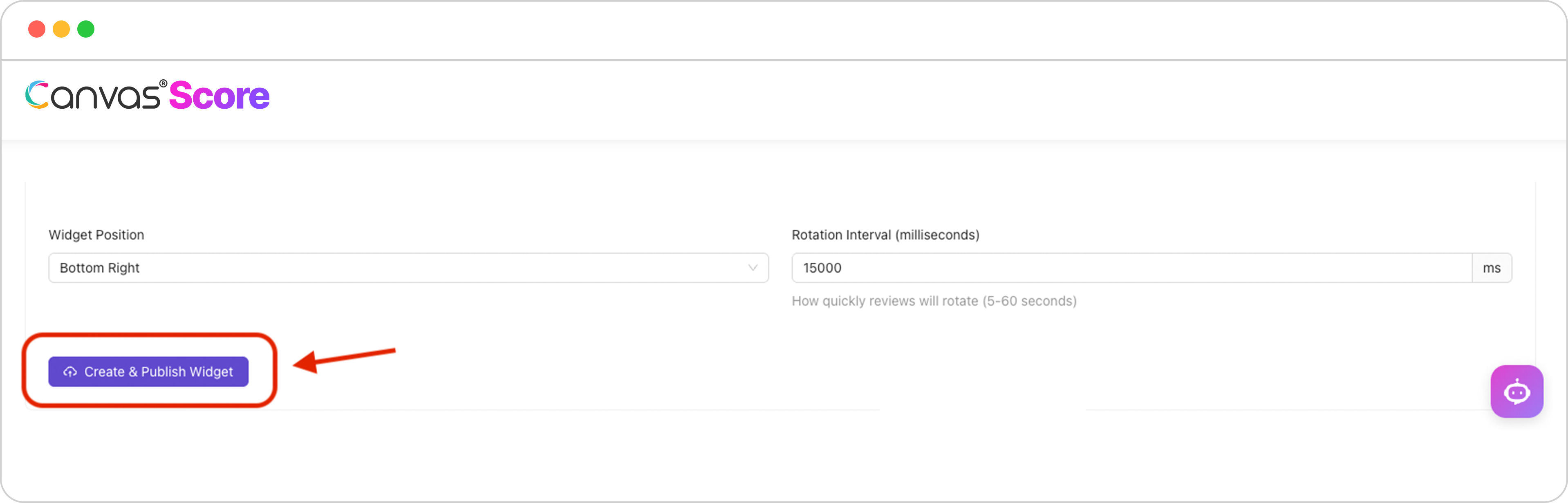
Click Create and Publish Widget.
Step 7:
You’ll then receive an embed code. Copy this snippet and paste it into the <body> section of your website’s HTML wherever you’d like the widget to appear.
This code connects your live Google reviews feed and keeps it automatically updated with the latest verified feedback.

Example of Pop-Up Widget

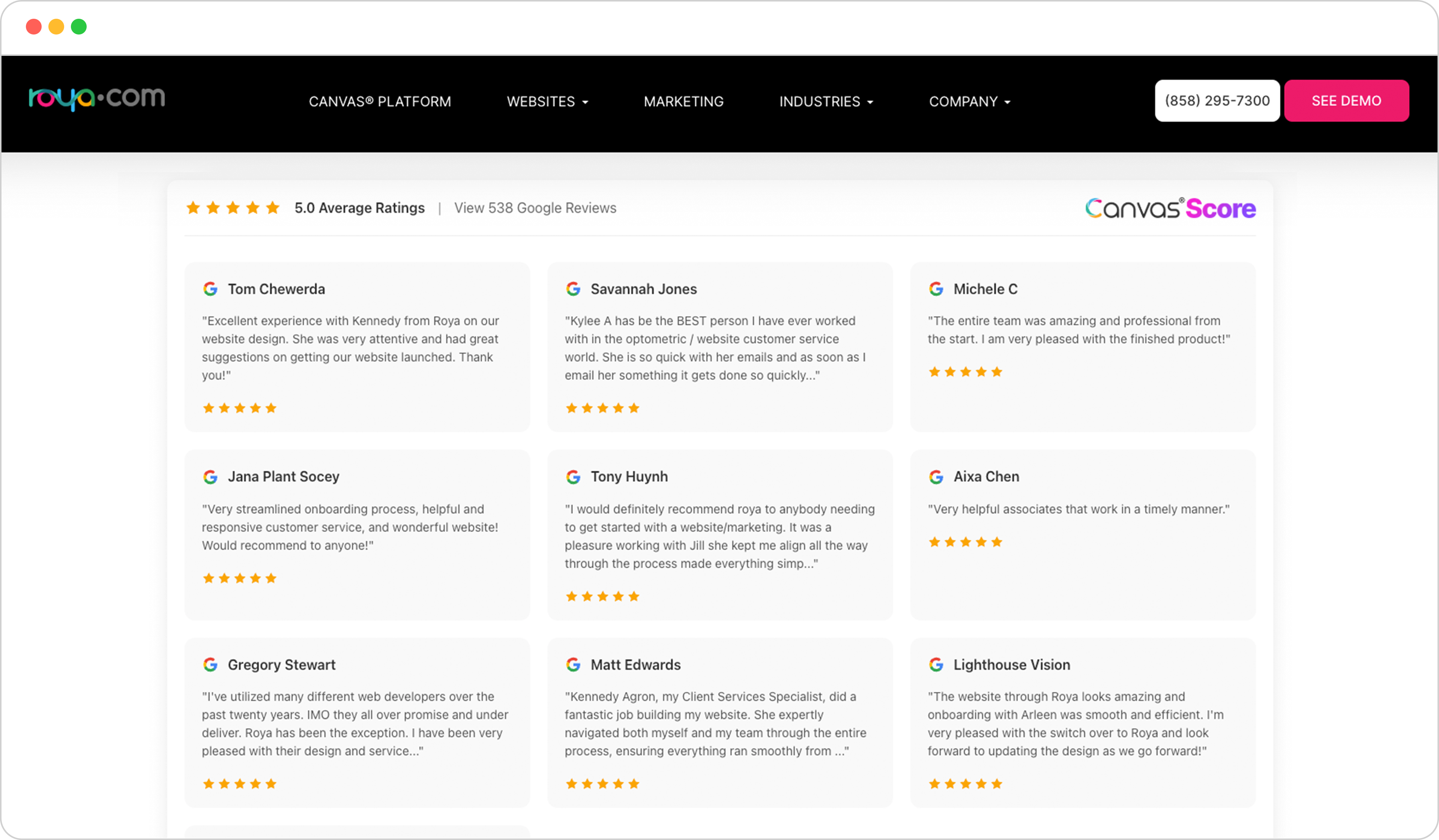
Example of Inline Widget
If You Have Questions,
Visit our support resource center here to view more information or contact our support team.

Canvas® Score is a proprietary review & referral automation platform designed and developed by Roya.com
© 2026 Canvas® Score | All Rights Reserved