
New Canvas® Score Admins logging in for the first time are required to either:
How to Connect Your Google Business Account to Canvas® Score
New Canvas® Score Accounts
* This is a requirement and you should not be able to navigate through Canvas® Score without connecting a profile.
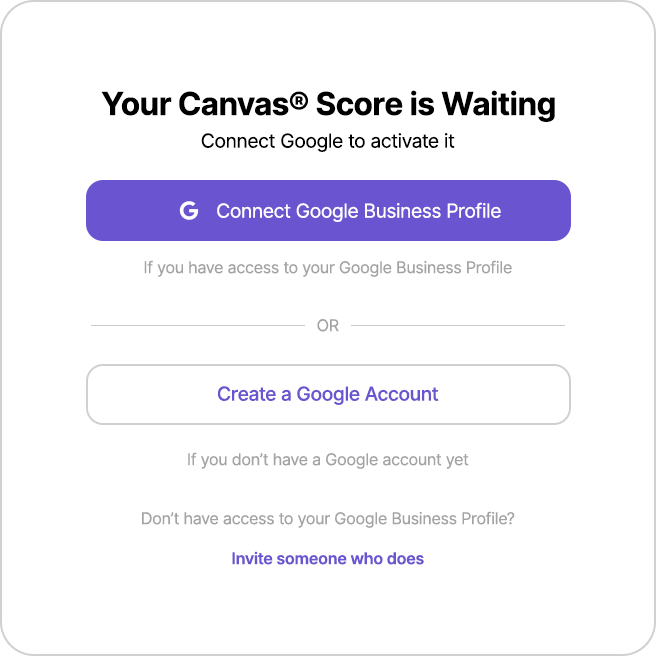
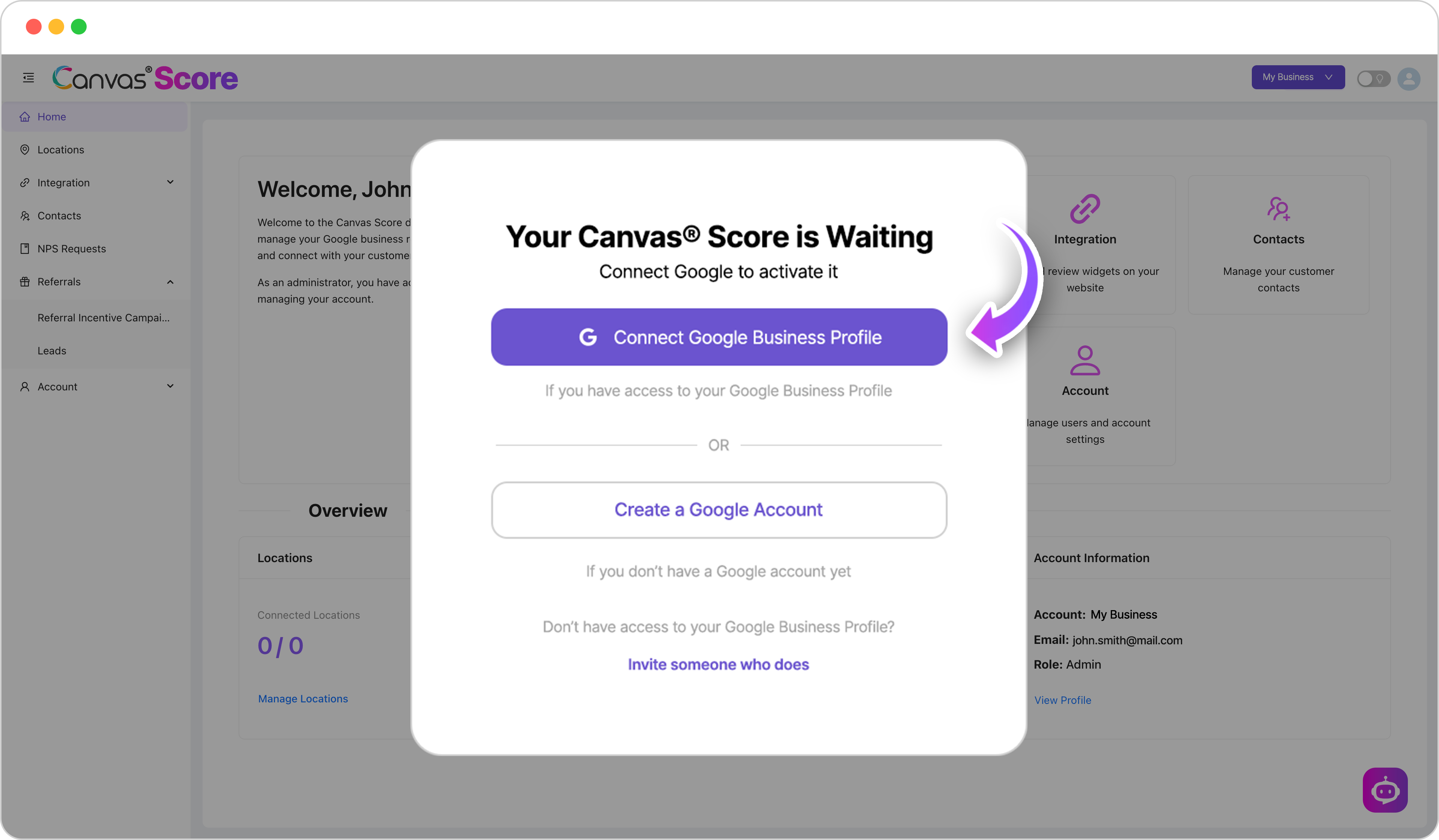
Link a Google Business Profile
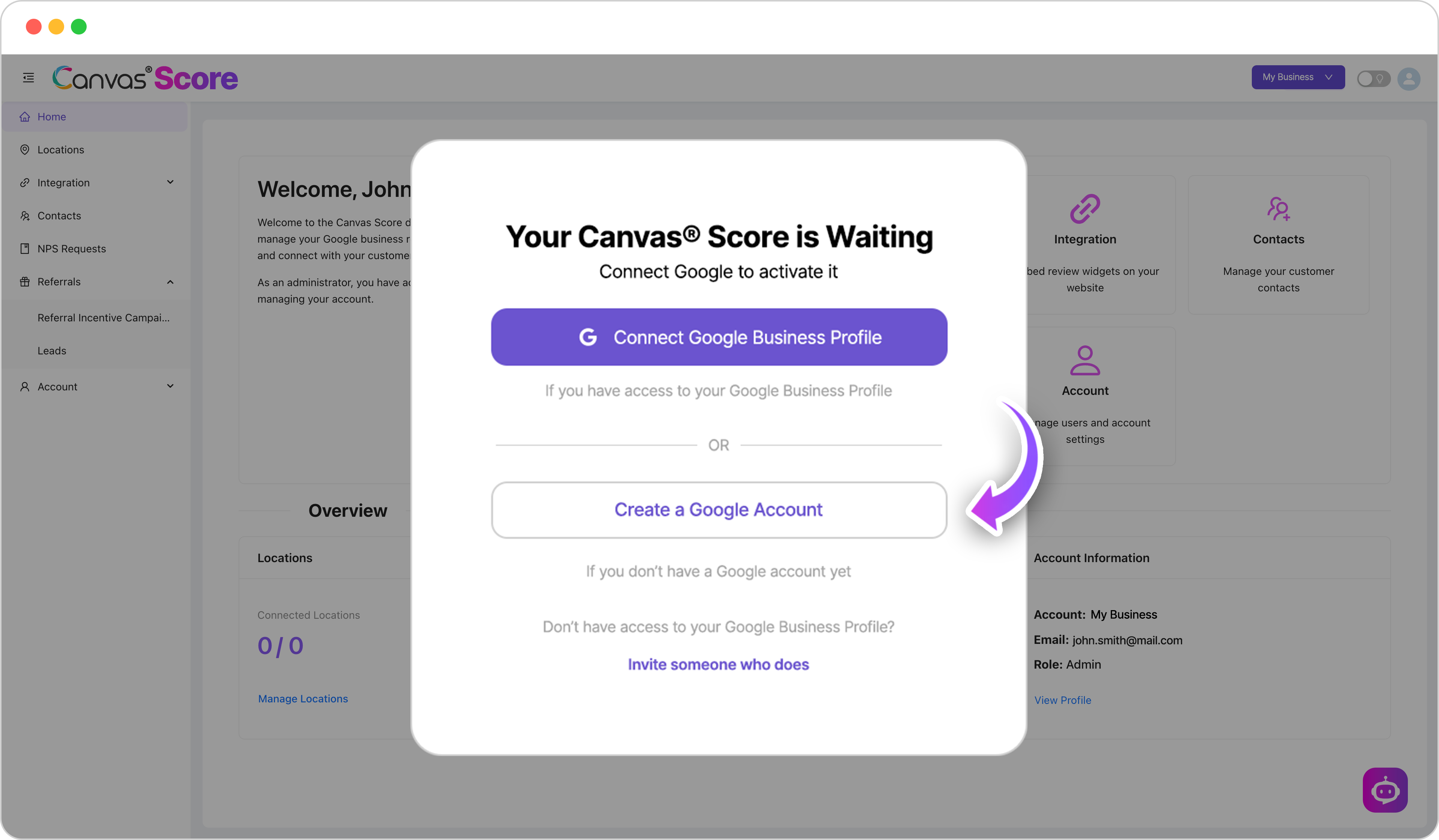
Click “Connect Google Business Profile” button from the activation popup.
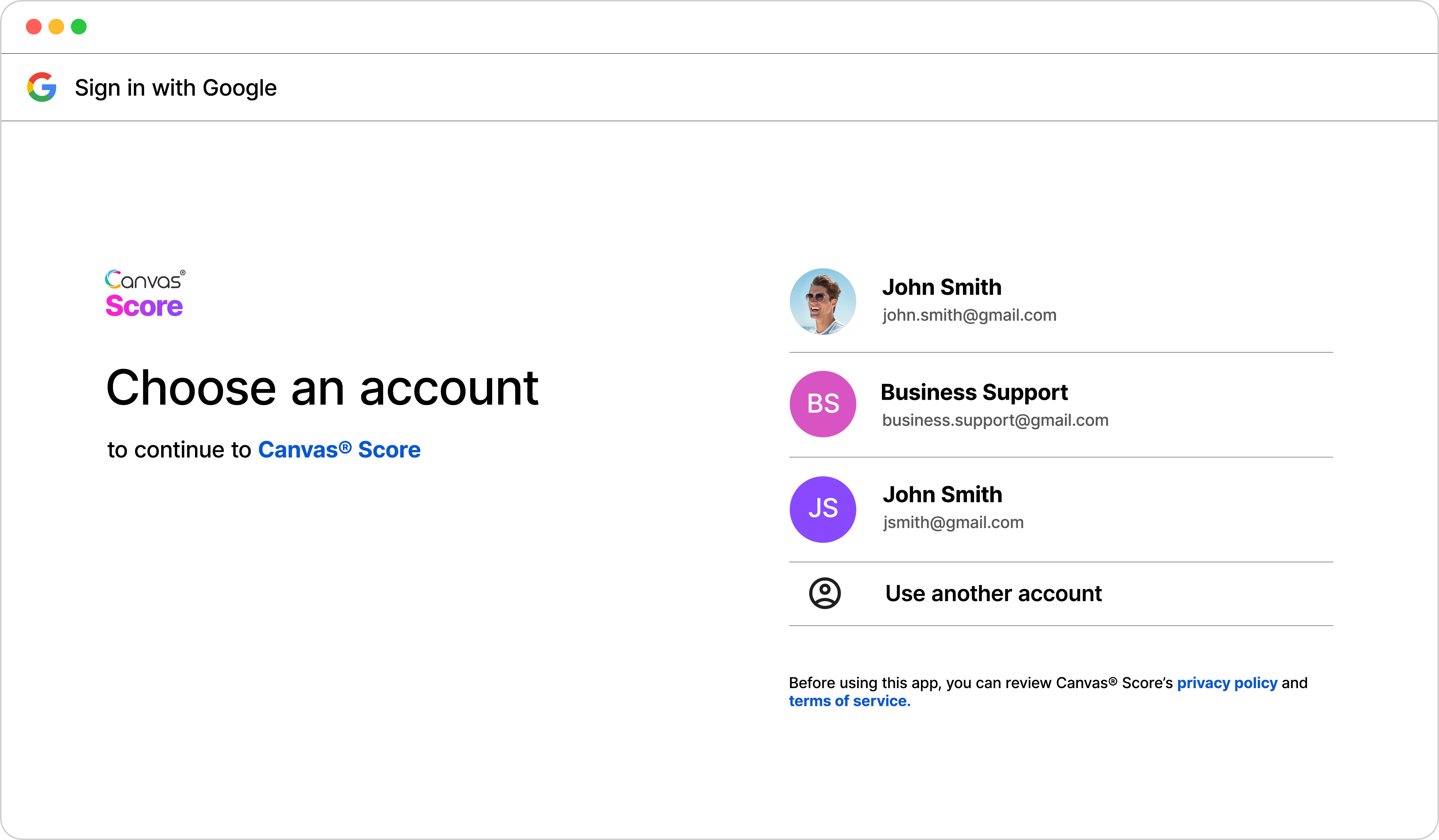
Click the gmail account that has the Google Business Profile(s) associated with it, that youʼd like to connect to Canvas® Score.
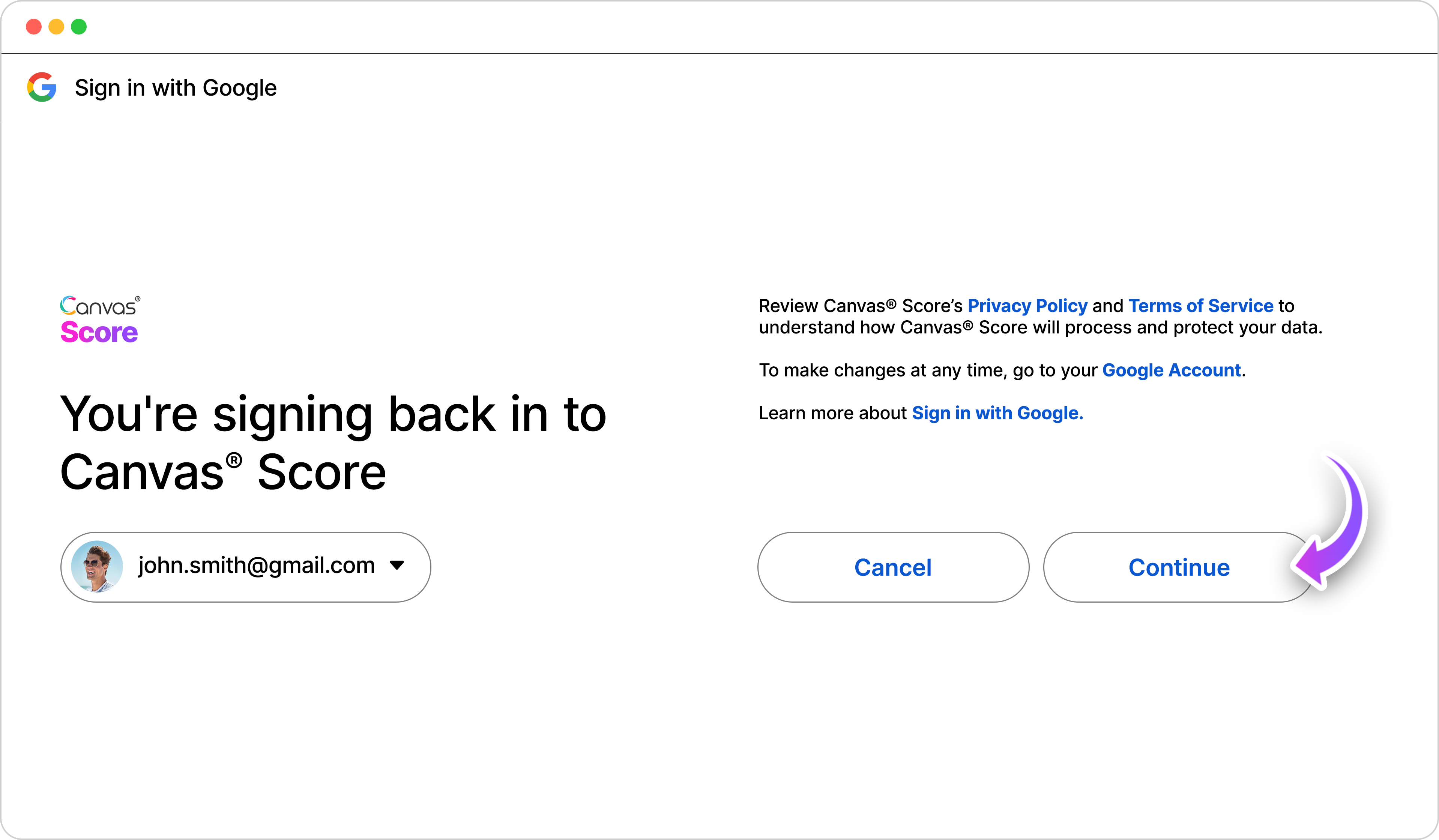
Click the “Continueˮ button to connect Canvas® Score to your Google Business Manager.
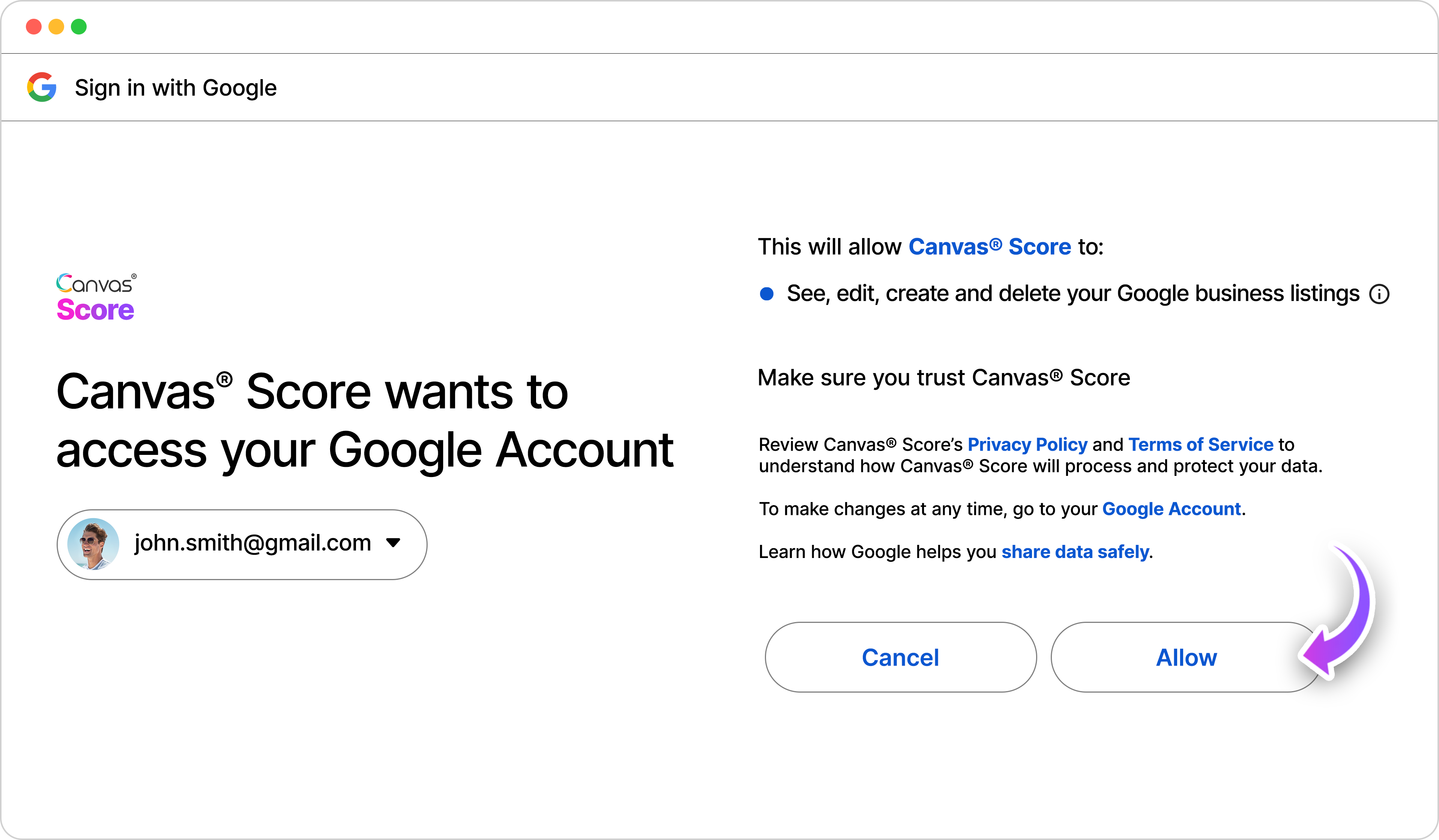
Click the “Allowˮ to enable Canvas® Score connecting to your Google Business Profile Manager.
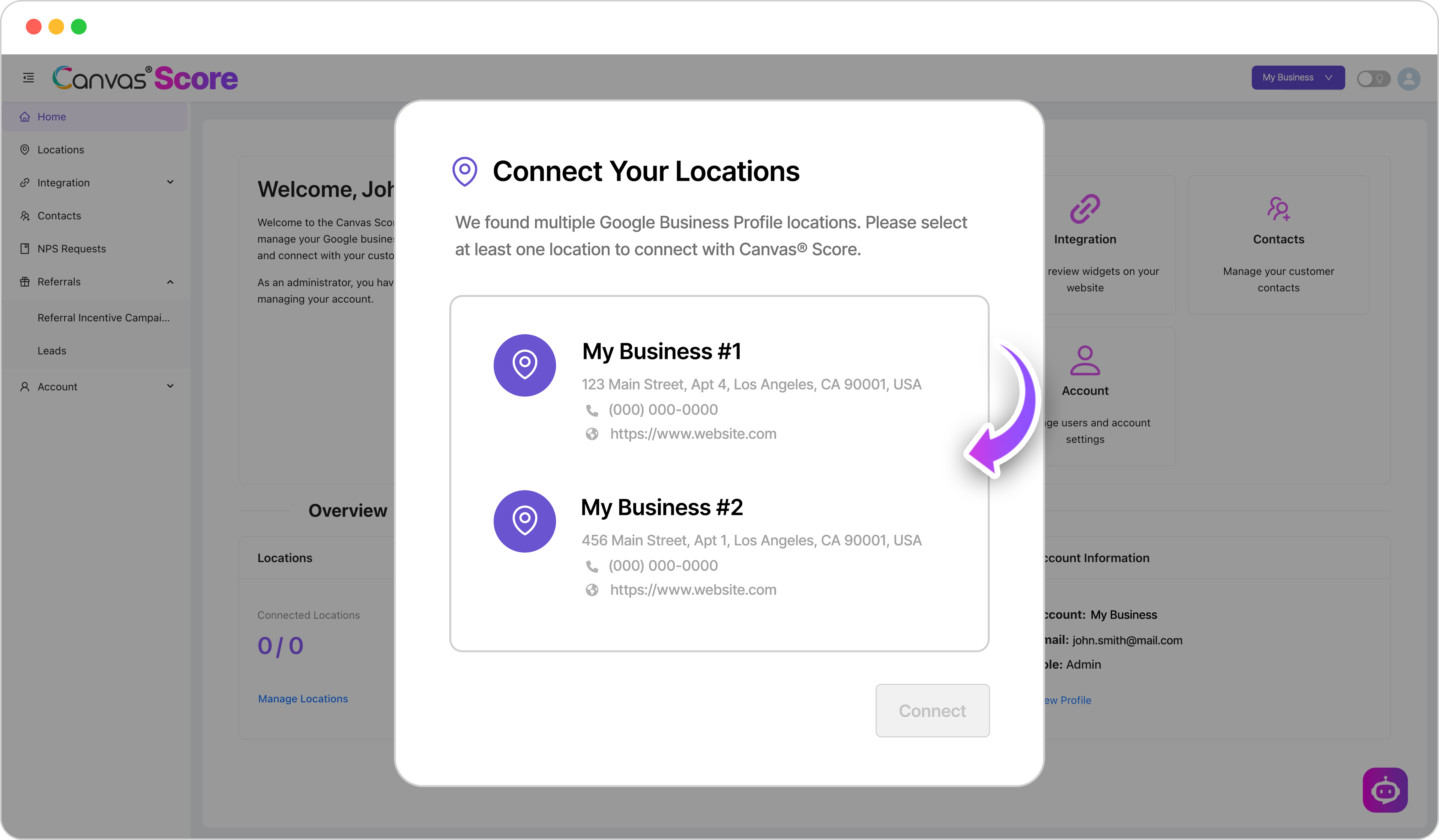
Canvas® Score will then show a list of all the Google Business Profiles within your Google Business Manager.
Select the location(s) you want to connect to Canvas® Score.
Create a Google Business Profile
If you do not already have a Google Business Profile, you can click the option to “Create a Google Business Profile”
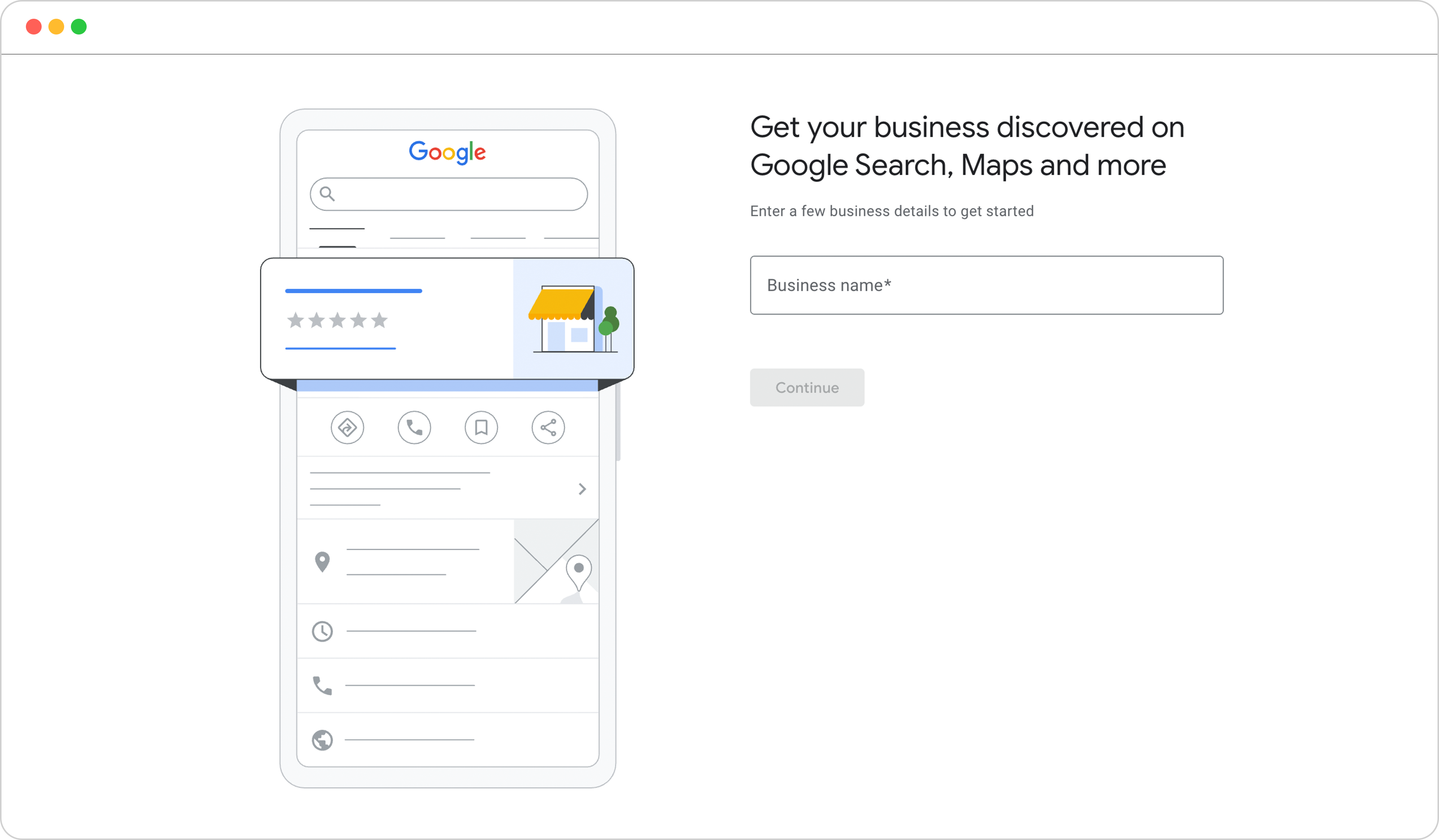
You will be redirected to https://business.google.com where you can follow the steps to create and verify your new business profile.
After youʼve verified your new Google Business Profile, you can review the steps outlined in Link a Google Business Profile to connect your Google Business Profile to Canvas® Score.
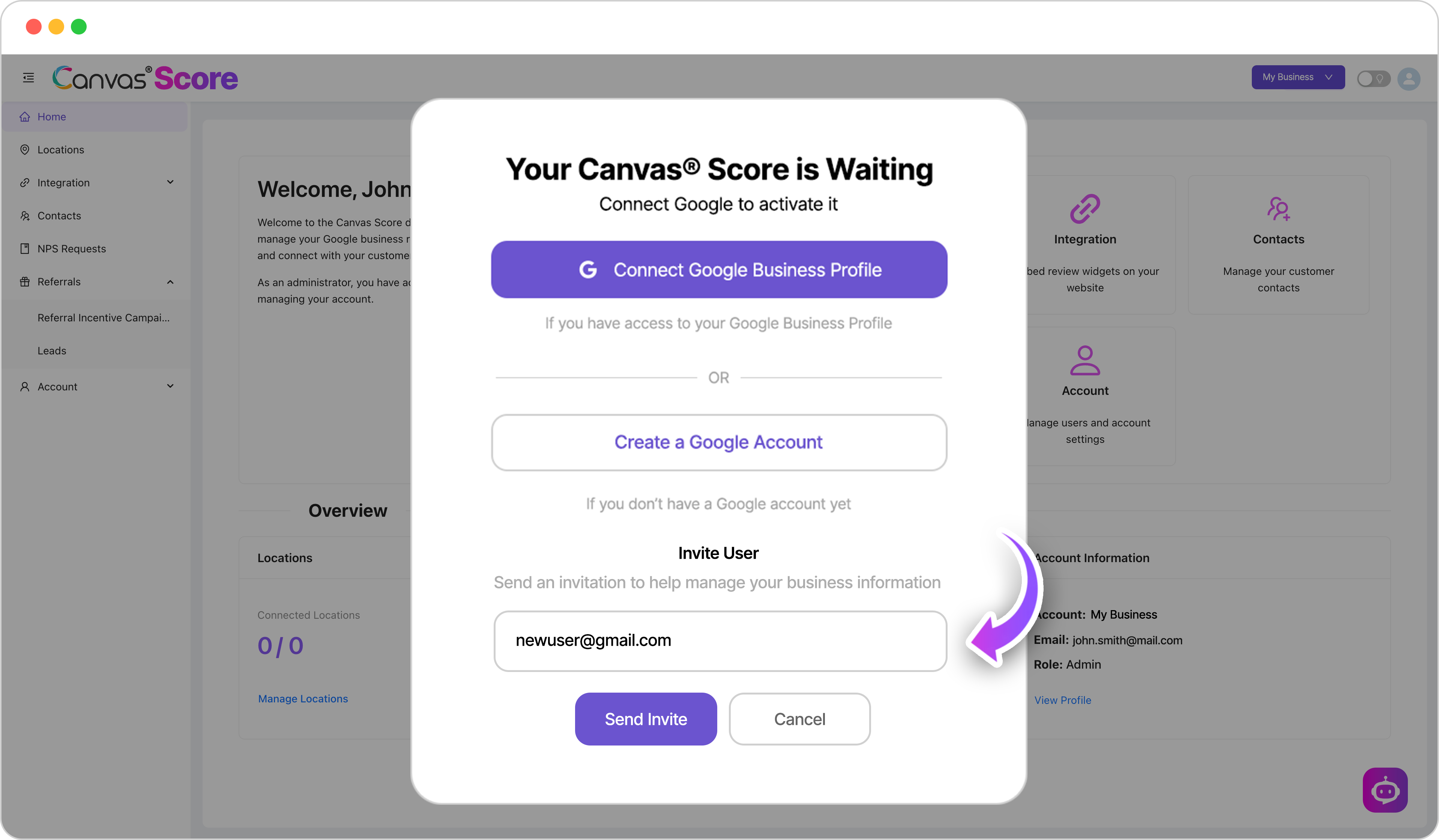
Invite a New User To Connect A Profile
If you are not the owner or a manager on your Google Business Profile, you can invite another user to connect the Google Business Profile.
Enter the email for the new user you’d like to invite to connect in the popup and click “Send Invite”
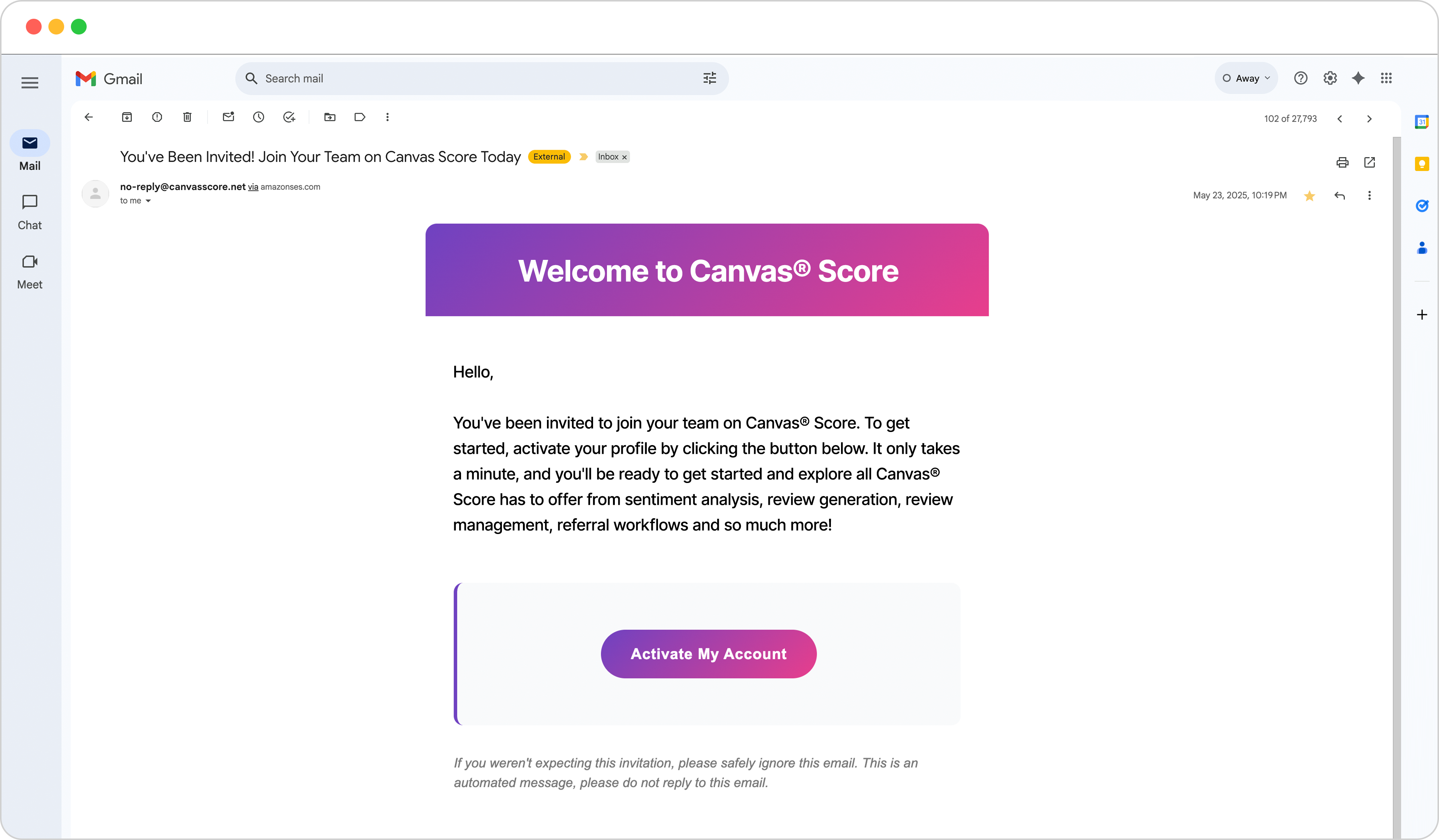
The new user will get an email to activate their Canvas® Score account.
After activating their Canvas® Score Account, the new user will be able to connect the Google Business Profile by following the steps outlined in Link a Google Business Profile to connect your Google Business Profile to Canvas® Score.
Existing Canvas® Score Accounts
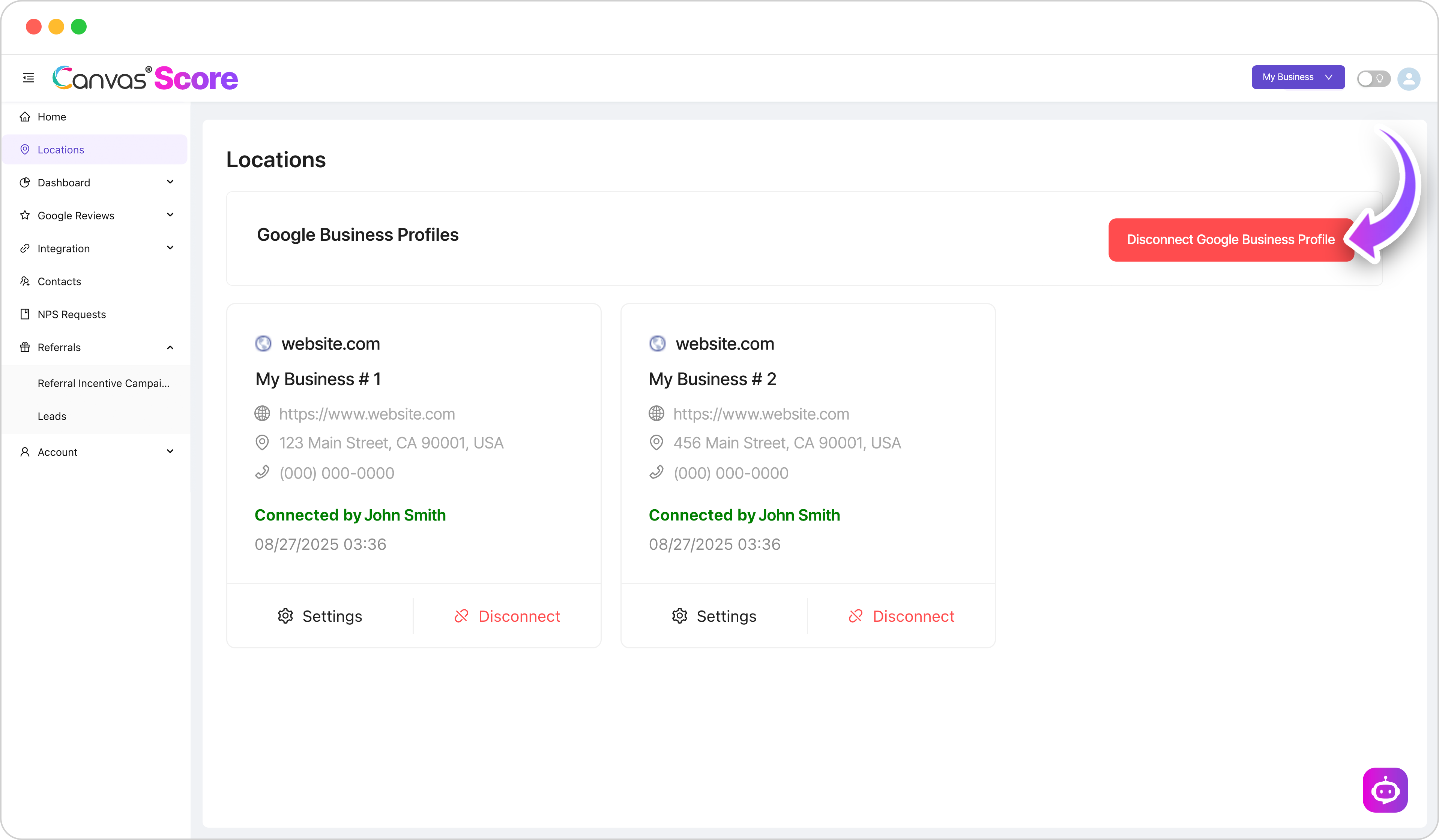
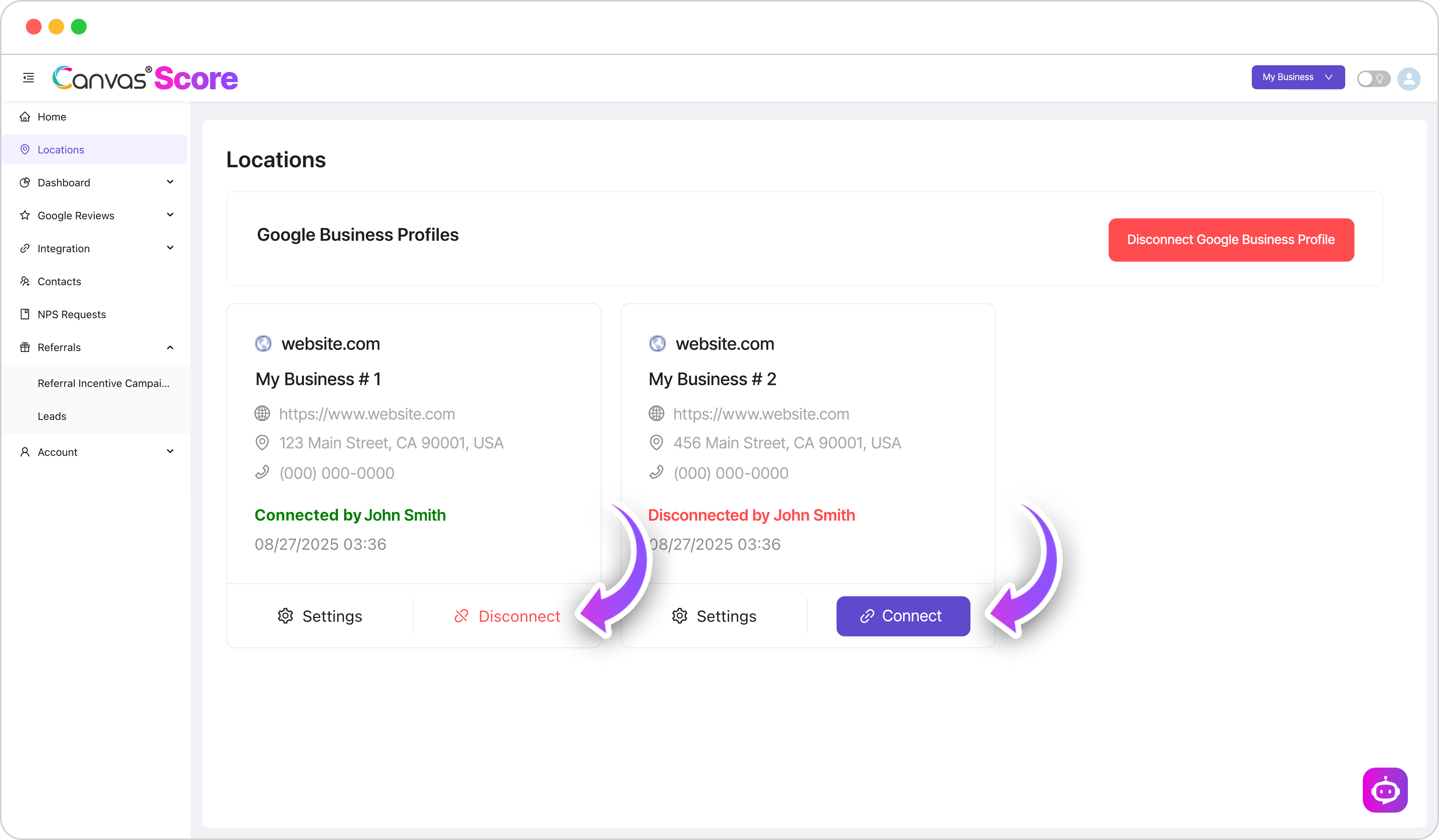
If you already have a Google Business Manager connected, but you want to connect a different Business Manager to connect different Google Business Profiles, you first need to “Disconnect Google Business Profile” in the top right corner.
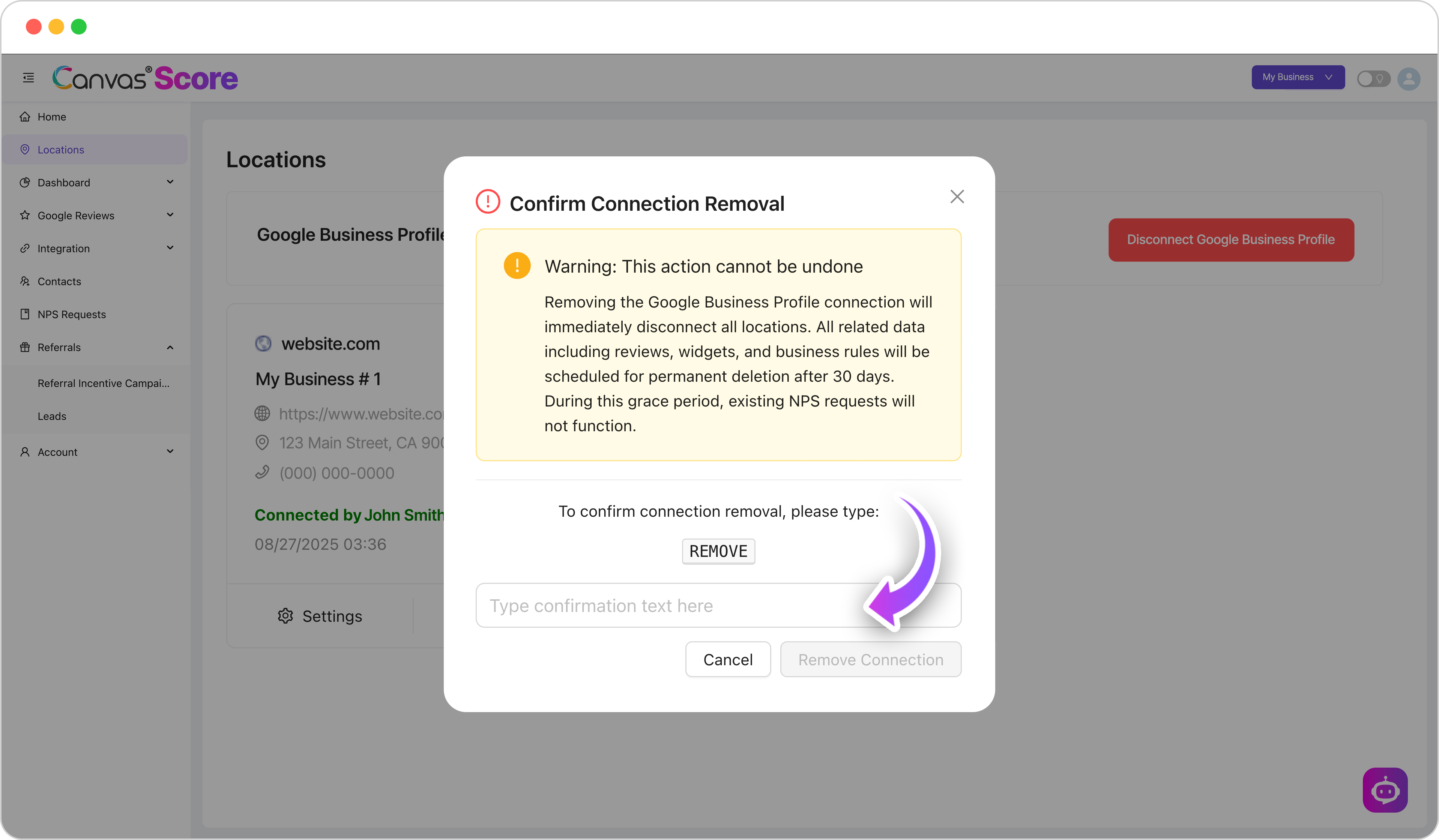
You will be prompted to confirm you want to remove locations with a validation pop-up where you need to type “REMOVEˮ to proceed:
That will clear out all locations. When there are no locations connected, you will see the option to “Connect Google Business Profileˮ and follow the steps from Link a Google Business Profile to connect your Google Business Manager to Canvas® Score.
If you want to stay connected to the same Google Business Manager but select an alternate location depending on your Canvas® Score package and location limits, you can either click “Connectˮ on a second or third location, or “disconnectˮ the active location to then be able to “Connectˮ a new location, if you are on a package with only 1 location as the limit.

Canvas® Score is a proprietary review & referral automation platform designed and developed by Roya.com
© 2026 Canvas® Score | All Rights Reserved