
Let’s review how you can customize the account settings within your Canvas Score marketing automation platform.
After logging in, you will be prompted to connect your Google Business Profile(s), the number of locations you’re eligible to connect will depend on your package.
Customizing your Canvas Score Account Settings
Lead Notification Settings
There are 2 places where you can update your notification settings so that you are notified when:
New NPS
New Google Review
New Private Feedback
New Referral Lead
Notification Settings Option 1 (default)
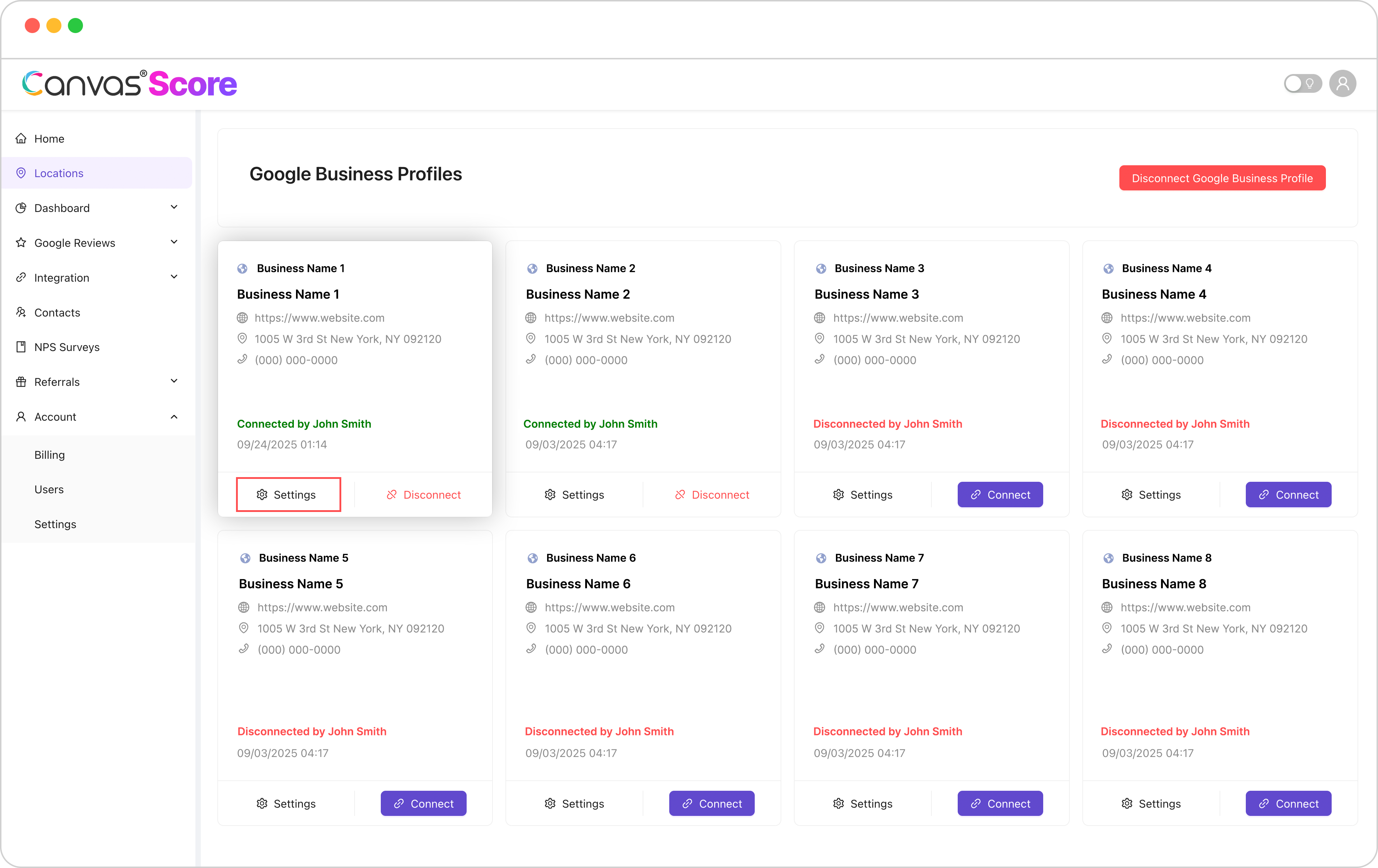
Click into the Locations menu item, and click into the ‘Settings’ for the location(s) that are Connected:
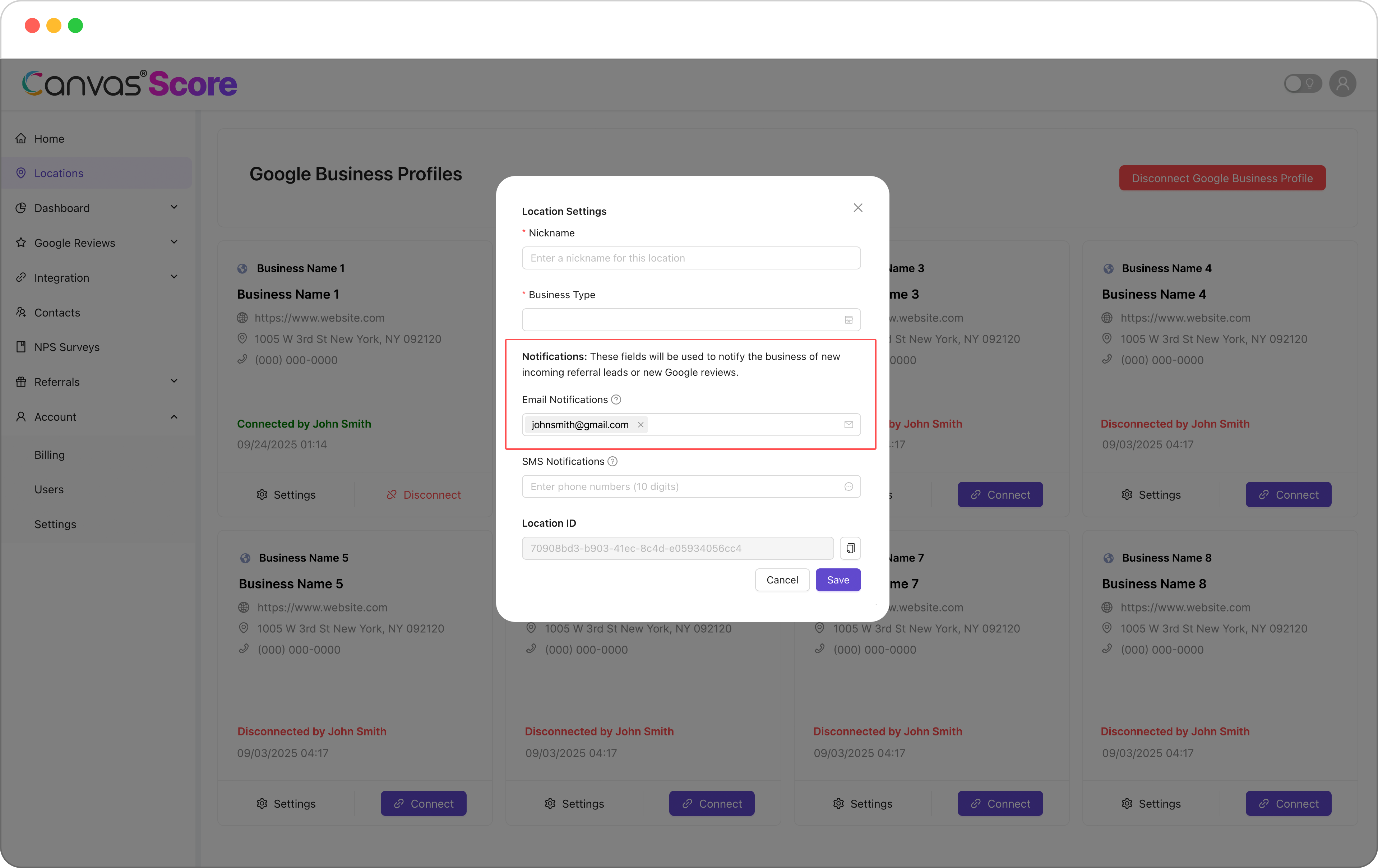
That will launch a pop-up for location specific settings, so you can give your location a Nickname (if you have multiple businesses with the same name but the location is the differenciator, etc.) The email from Account creation will pre-populate for you in the settings as seen below:
You can enter a phone number to receive SMS notifications as well. The benefit of putting your lead routing here for email and SMS notifications is that it can be unique per location if you have multiple locations.
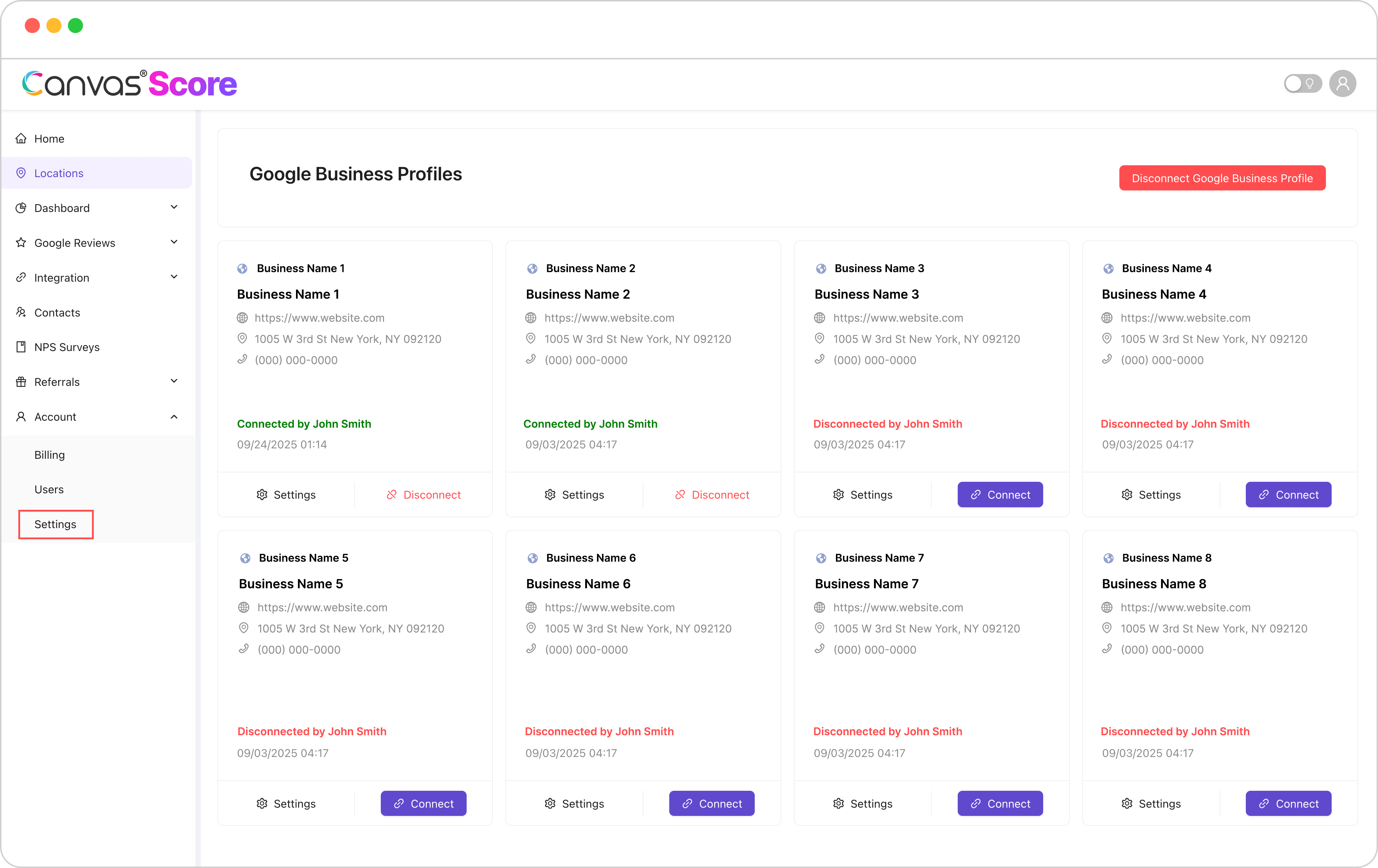
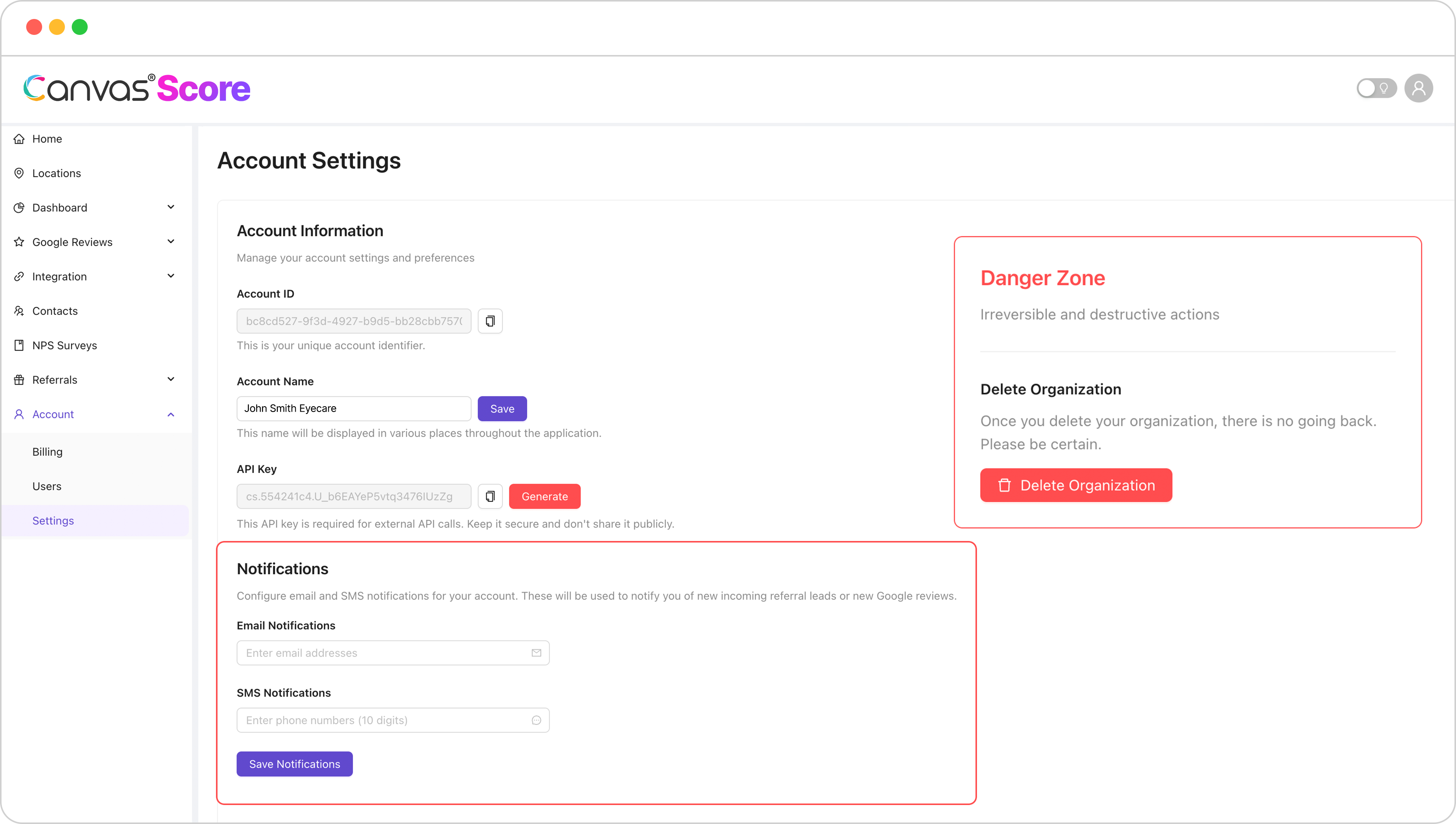
Alternatively, if you have a single location, you can rely on the account settings above or update in the Account settings.
From there, you will see Notifications where you can add the email(s) or a SMS number that will receive notifications for any connected locations.
Review and Referral Launch Pad Threshold
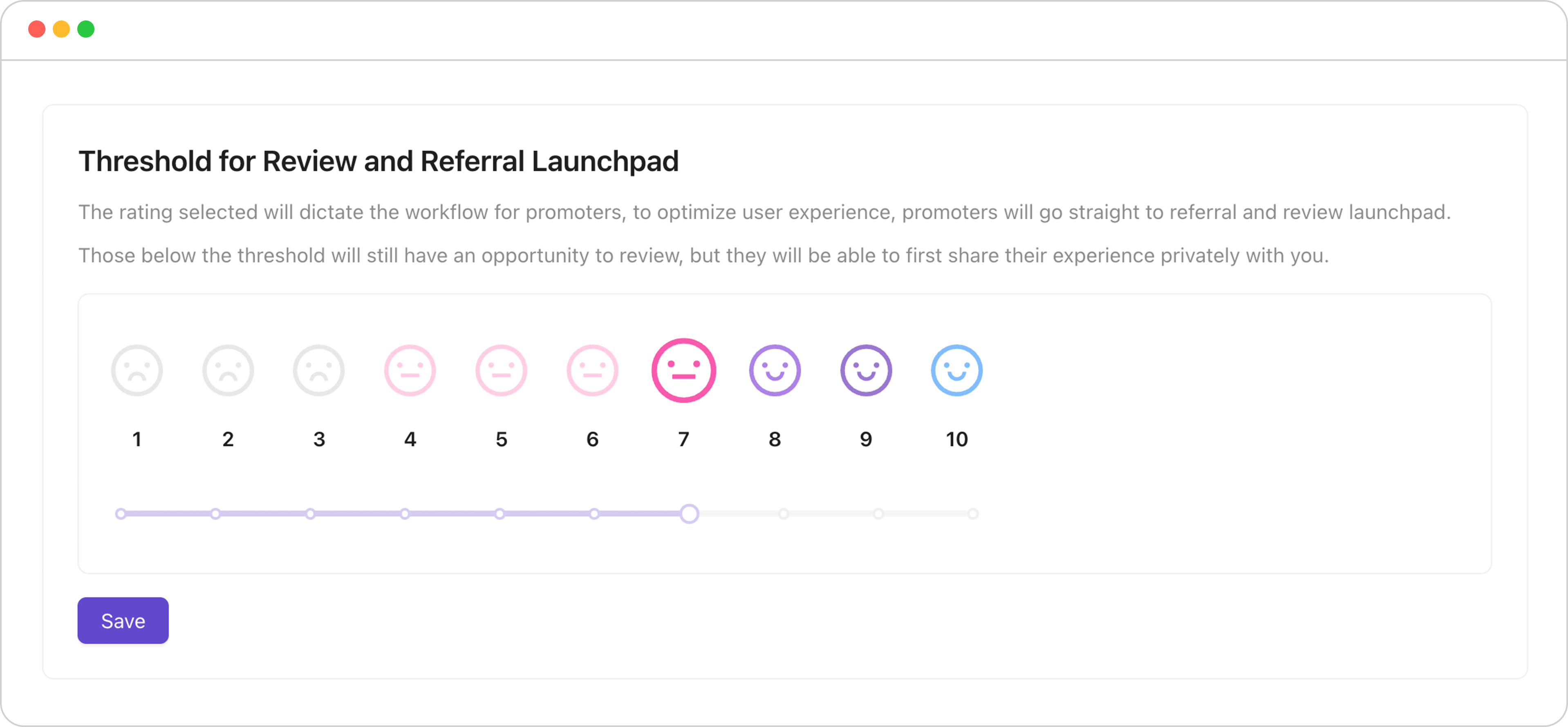
At the core of Canvas Score is the Net Promoter Score (NPS) survey, that identifies your promoters, passives, detractors and launches workflows optimized for user experience based on their overall sentiment. Learn more about NPS workflows here . You can customize the ‘threshold’ for the launchpad, where NPS responders see the option to provide a referral or referral in the Account Settings:
The setting will allow anyone with the rating selected (or higher) to see the option to leave a referral and review (if those modules are enabled) If a contact rates the NPS with a number below what is selected in the settings they will be directed to leave feedback about their experience.
Review and Referral modules
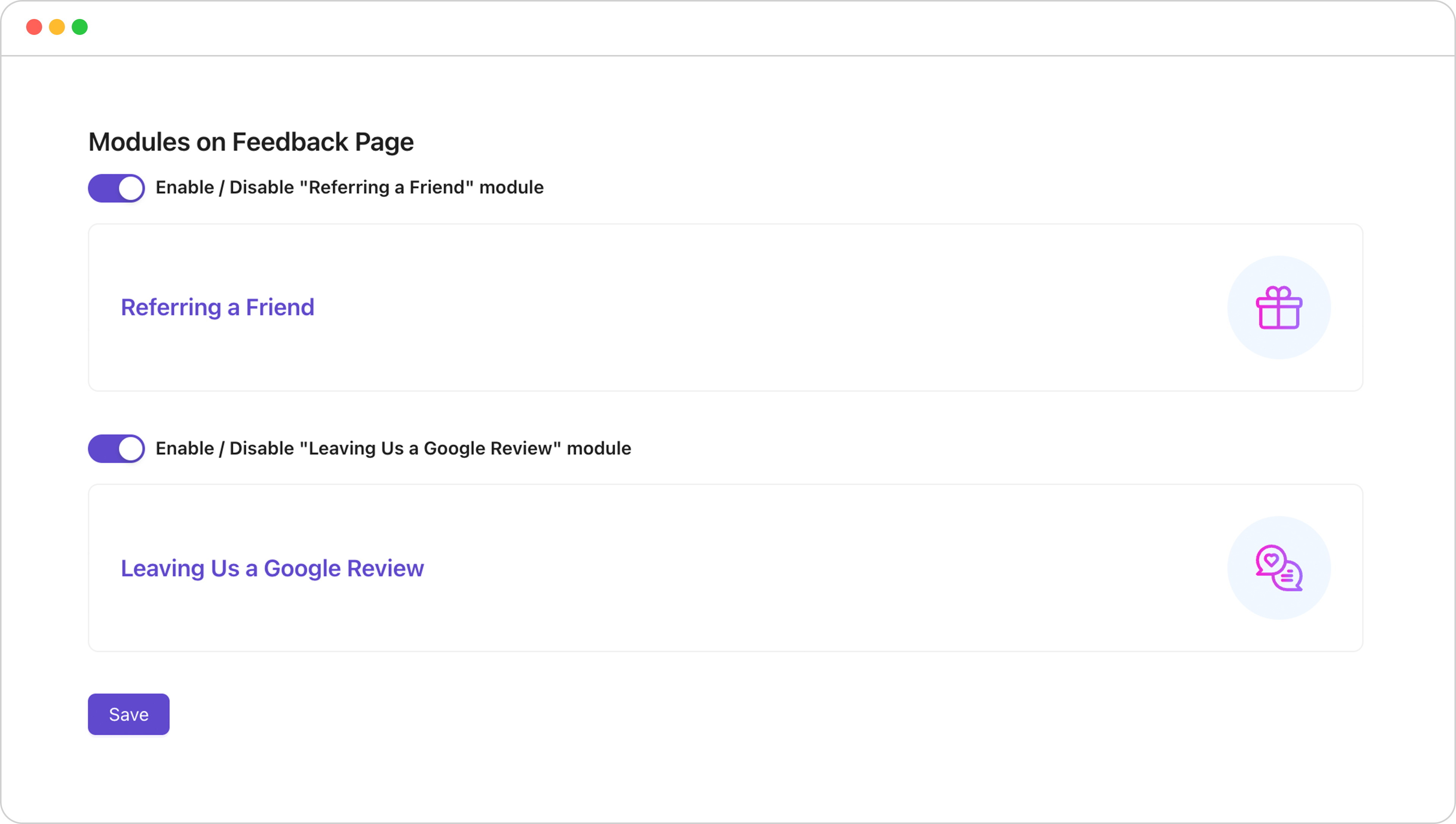
Within the Account Settings, you also have the option to enable and disable the modules for the ‘Refer a friend’ and ‘Google review’ link from the launch pad. They are toggled on by default, you can disable one if you want to focus attention on one of the modules.
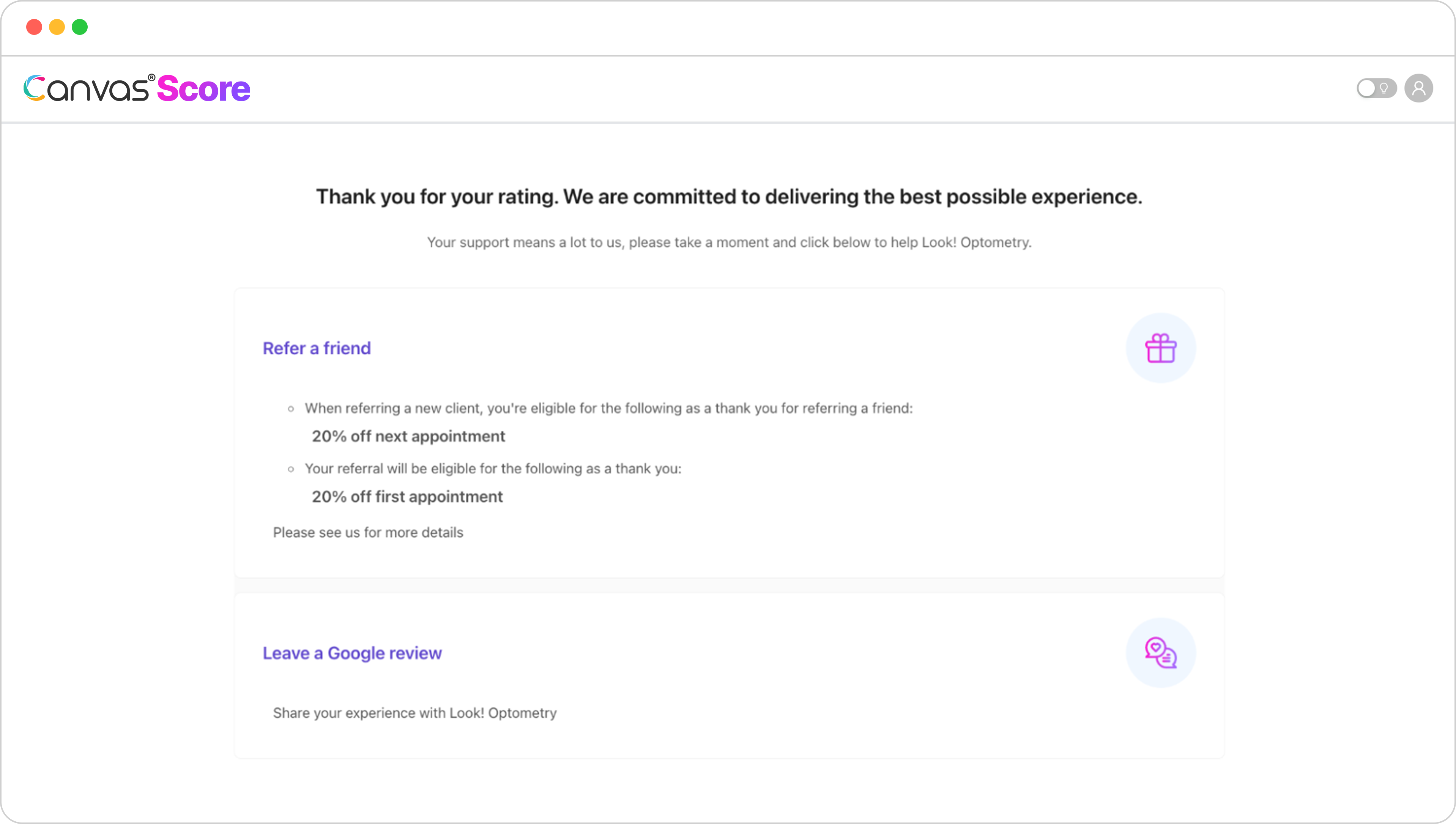
Both modules active will appear like the example below (note the example below has an incentive offer enabled for the referral module)
Both modules active will appear like the example below (note the example below has an incentive offer enabled for the referral module)
Google Review Threshold
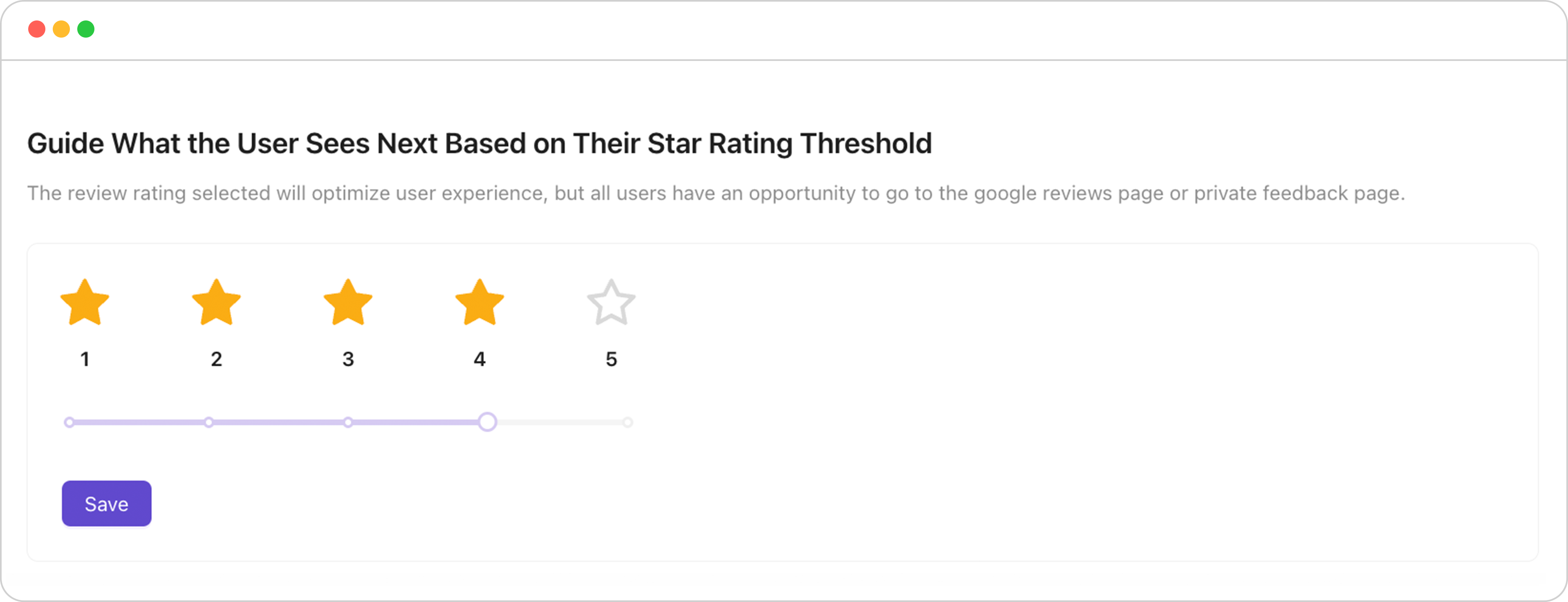
Within the Account Settings, you can also set the threshold for the star rating that will link users directly to Google to leave a review. In the example below, the threshold is set to 4, so if a contact clicks rates a 4 or 5 on the launchpad, they will link out directly to the google business page with the review pop-up available. If in this example the contact rates a 3 or below, they will be redirected to leave feedback to share their experience so you can communicate with them asap to correct their experience.
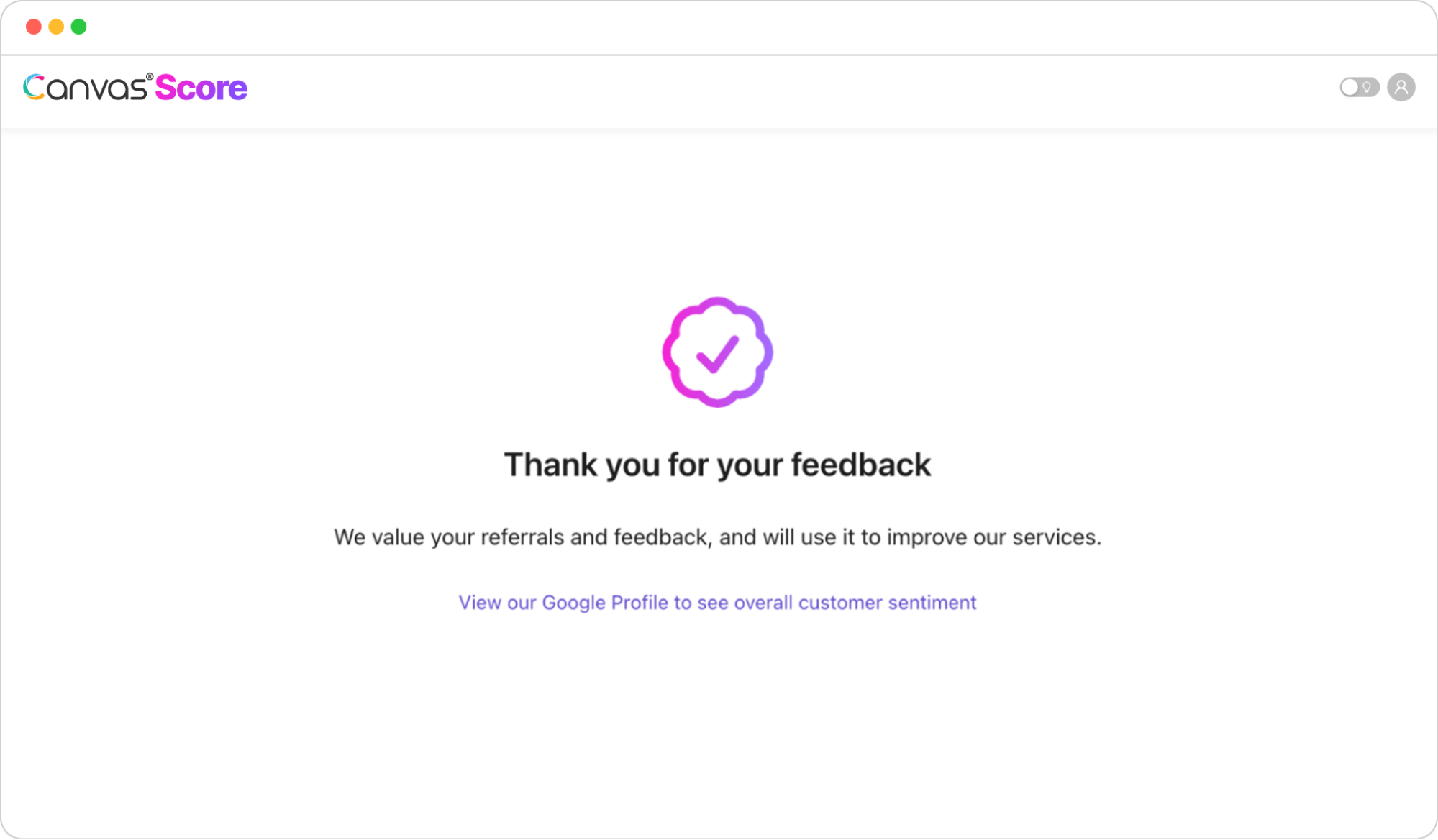
After a user provides feedback, they will see a thank you message and have a link to visit the google business page to access reviews.
If You Have Questions,
Visit our support resource center here to view more information or contact our support team.

Canvas® Score is a proprietary review & referral automation platform designed and developed by Roya.com
© 2026 Canvas® Score | All Rights Reserved